In Gaza, shop conditions change every day: the internet drops for hours or days, electricity comes from solar or a generator, one customer pays cash, another transfers through a banking app, and a third says “put it on my account until the end of the month”. The biggest risk is not low sales but lost numbers: an unrecorded debt, stock that ran out unnoticed, or a profit you think exists but does not.
This guide is for shop owners in Gaza, whether a supermarket, pharmacy, spare parts, clothing or building materials store, with steps you can apply today with software or a notebook.
1. Separate shop work from the internet
Rule one: do not let sales stop because the internet went down. Software that needs a constant connection to issue an invoice sends you back to paper at every outage, and after a few days the papers pile up outside the accounts.
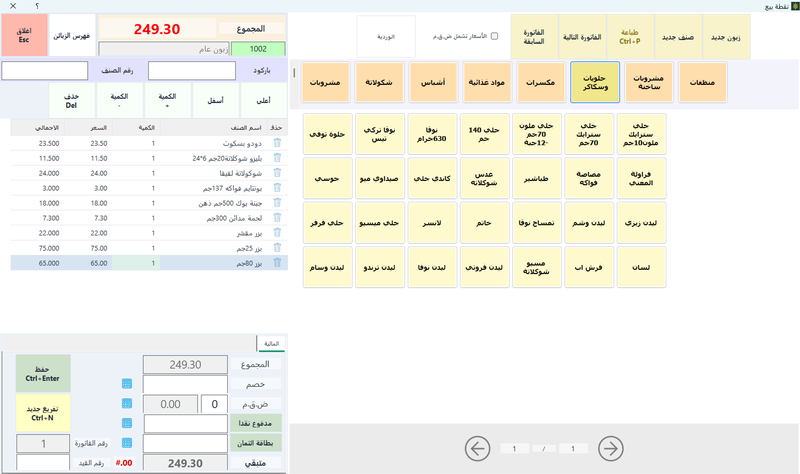
Keep daily work on the shop computer itself: sales, purchase and return invoices, barcode POS, receipts and payments, stock balances and reports. You need the internet only for tasks that can wait: uploading the backup, sending statements via WhatsApp, and linking branches in different locations.
In Sonbola: the Windows desktop edition runs invoices, POS, warehouses, vouchers and reports without the internet, and data stays on your computer. Details in accounting software that works offline.
More than one computer in the shop?
The POS computer and a warehouse or office computer can work on the same data over a local network inside the shop (router or switch and cables) with no internet subscription, each employee with their own permissions.
2. Prepare the shop for power cuts
Power cuts are more dangerous to data than internet cuts; a sudden shutdown while saving can lose the last transaction or damage a file.
- Put a UPS on the POS computer to give you minutes to save and shut down properly.
- Choose a low-power device: a laptop or mini PC uses less power than a desktop and runs longer on battery or solar.
- Always shut down from the system, never from the power switch.
- Use a thermal printer for receipts and keep an A4 printer for formal invoices and statements.
- Schedule heavy tasks such as large stocktakes, reports and backups during stable power hours.
3. The backup matters more than the software
You may lose the whole computer through a fault, a long outage or having to leave the shop. If your data is on one device only, you can lose your debts and accounts in a moment. Follow the three-copy rule:
| Copy location | When? | Why? |
|---|---|---|
| On the computer | Daily at closing | Quick restore after a small mistake |
| On a USB drive | At least once or twice a week | You carry it outside the shop |
| On Google Drive | Whenever the internet is available, even briefly | Survives losing both computer and USB |
You can back up to your own Google Drive account according to the connection settings and permissions. Review the privacy policy and your edition settings, and verify that the backup can be restored.
Tip: test restoring the backup once on another computer. A backup you never restored may fail you when you need it.
4. The debt book is the heart of the shop
Credit sales are part of most shops’ day, and this is where losses happen: an unwritten debt, a lost paper, or a customer saying “I paid” with no proof.
- Open an account for each regular customer with name and phone, not a generic “cash customer”.
- Record the debt immediately with a credit invoice, and every payment with a receipt voucher.
- Set a credit limit and term for each customer.
- Review the debt ageing report weekly to see who is late and since when.
- Send the account statement via WhatsApp when the internet returns.
Read also: how to track customer debts and reduce arrears.
5. Shekels, dollars and transfers
The same customer may pay part in cash and part by transfer, in two currencies. If amounts mix, you lose sight of your real balance.
- Separate cash boxes: one for shekels, one for dollars, and an account for bank transfers or wallets.
- Record each payment by its method in the same voucher when methods are mixed.
- Record the exchange rate of each transaction when it happens.
- Reconcile transfers weekly against the bank or app statement; a transfer screenshot is not proof of receipt.
Details in recording transfers and wallets and shekels, dollars and dinars in your shop accounts.
6. Stock when goods are scarce
- Set a reorder level for important items so the program alerts you before they run out.
- Record the actual purchase cost of each batch: if purchase prices rise, your old selling price may become a loss. See calculating the selling price.
- Review item profits to find what you sell at a loss.
- Track expiry for medicines, food and agricultural supplies.
- Count with your phone: the Sonbola Android app is a desktop companion for stocktaking and sync; syncing needs a connection.
7. A ten-minute daily routine
- Close the cashier shift and match the cash in the drawer with the recorded amount. See end-of-day cash differences.
- Make sure every debt today is recorded under its owner.
- Record expenses: generator, fuel, transport and wages.
- Review items that reached their reorder level.
- Take a backup on the computer and USB, and upload it to Google Drive if the internet is available.
8. If you must close or relocate the shop
- Always keep a recent backup on a USB drive with you and another on Google Drive.
- Each month, save a PDF or printed copy of customer and supplier statements and the stock count.
- Keep the program activation details and support number somewhere safe.
- When restarting on a new computer: restore the backup, then count what is physically there and adjust balances accordingly. If data was lost, read lost the debt book: rebuilding your accounts.
Frequently asked questions
Is there accounting software that works completely offline?
Yes. The Sonbola desktop edition installs on Windows 10 or later and works offline for invoices, POS, stock, vouchers and reports.
What needs the internet in the desktop edition?
Uploading backups to Google Drive, sending invoices and statements via WhatsApp or SMS, and linking branches in different locations.
Can I run more than one computer without the internet?
Yes, over a local network inside the shop; computers share the same data and each employee has their own permissions.
How do I protect my data if the computer fails or is lost?
Keep three copies: on the computer, on a USB drive outside the shop, and on Google Drive whenever the internet is available, and test a restore on another computer.
Can I try the program before paying?
Yes. The desktop trial is 30 days or 500 invoices, whichever comes first, with a ready training company.